Quick Tip: How to Create an Abstract Wireframe Text Effect

| 0 comments


Tutorial Details
Program: Adobe Photoshop CS2+
Difficulty: Beginner
Estimated Completion Time: 20 Minutes


Step 1
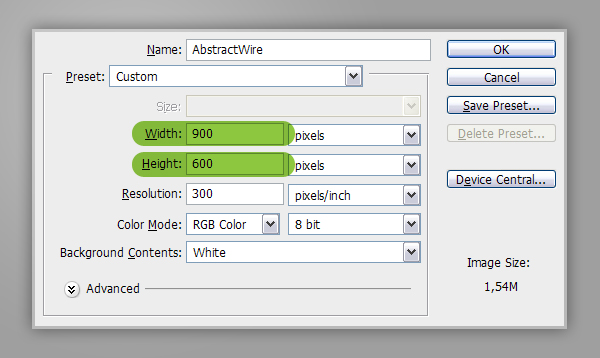
Let’s start by creating a new document which is 900 px wide and and 600 px high at a resolution of 300 pixels/inch. Make sure the Color Mode is set to RGB.


Step 2
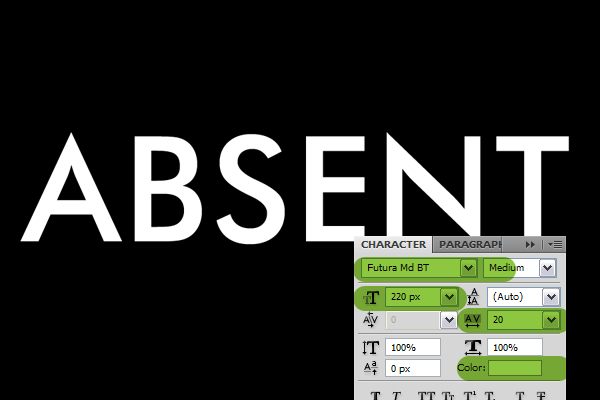
Fill the “Background” layer with Black. Get the Type Tool and type your text. I wrote “ABSENT”. I used Futura Md BT font, set Font Style to Medium and Font Size to 220 px. I also set the Tracking to 20 to increase the space between letters. Make sure the Text Color is set to White.


Step 3
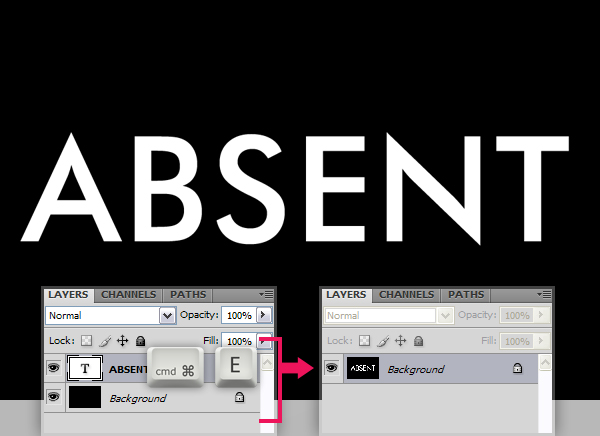
While the text layer is selected on the Layers Palette, hit Command/Ctrl + E to merge the text and the "Background" layers.


Step 4
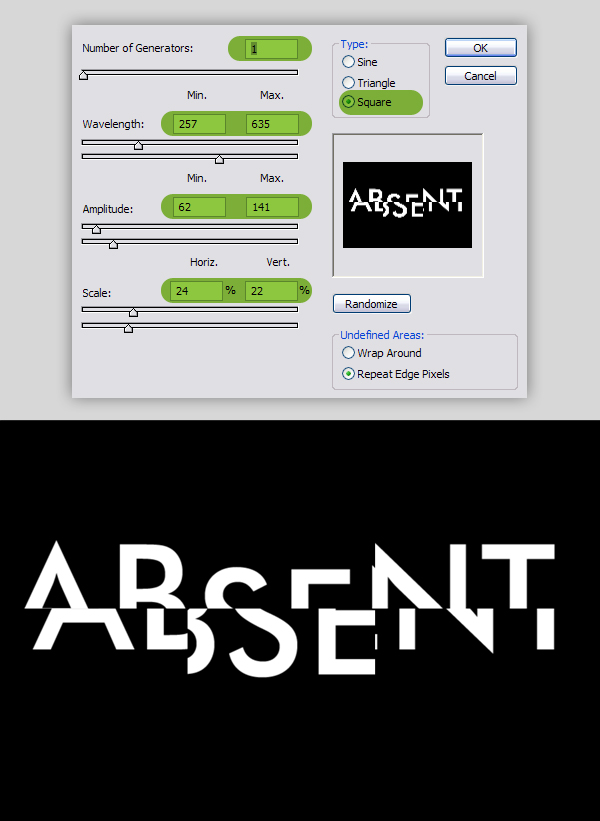
Now go to Filter > Distort > Wave and use these settings: Type: Square, Number of Generators: 1, Max Wavelength: 635, Min. Wavelength: 257, Max. Amplitude: 141, Min. Amplitude: 62, Horiz. Scale: 24% and Vert. Scale: 22%. Now you’ll have a pretty distorted text. Please keep in mind that the result depends on these parameters as well as the size, tracking and position of the text.


Step 5
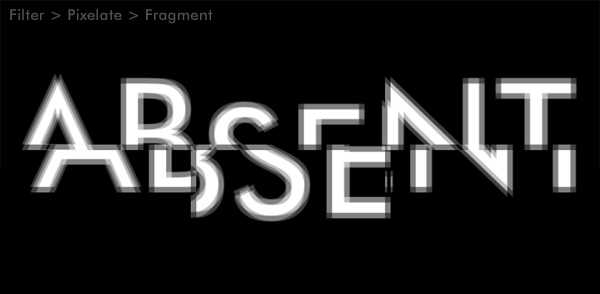
We’ll add another displacement effect to our text and we’re going to use Fragment filter for that. Go to Filter > Pixelate > Fragment.


Step 6
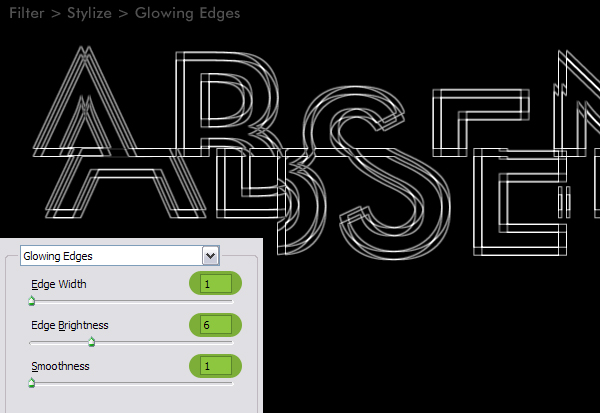
Now go to Filter > Stylize > Glowing Edges, set Edge Width to 1, Edge Brightness to 6 and Smoothness to 1.


Step 7
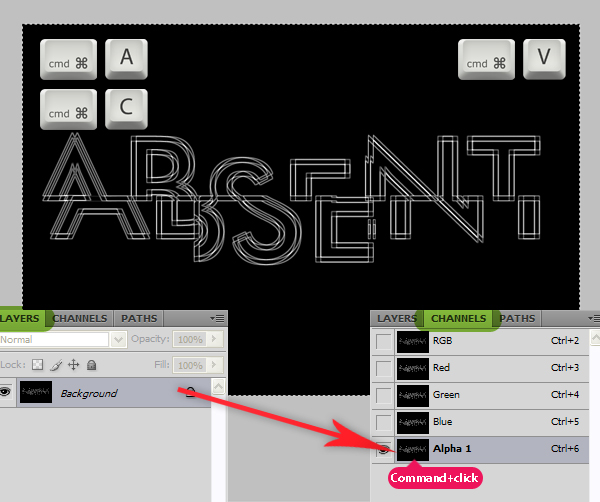
We’re going to copy this image to a new alpha channel and make a selection out of it. First hit Command/Ctrl + A to select the whole layer, hit Command/Ctrl + C to copy. Then go to the Channels Panel create a new channel and hit Command/Ctrl + V to paste. Command/Ctrl-click on the Alpha 1 channel thumbnail to get the white pixels selected.


Step 8
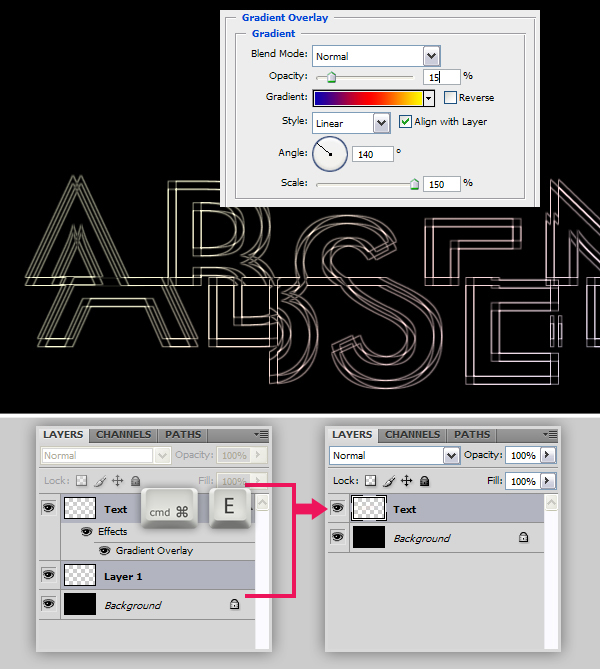
Now go back to the Layers Panel. Create a new layer and name it "Text". Fill the selection with White, hit Command/Ctrl + D to deselect. Go to the "Background" layer and fill it with Black. Now we’ll apply a Layer Style to "Text" layer. Select the "Text" layer in the Layers Panel and apply a Gradient Overlay using these settings: Blend Mode set to Normal, Opacity set to 15%, Gradient set to Blue, Red, Yellow, Angle set to 140 and Scale at 150%. Select the “Background” layer in the Layers Panel and create a new layer. Select both “Layer 1″ and “Text” layers, hit Command/Ctrl + E to merge selected layers. Now the layer style we’ve just applied is merged with the layer.


Step 9
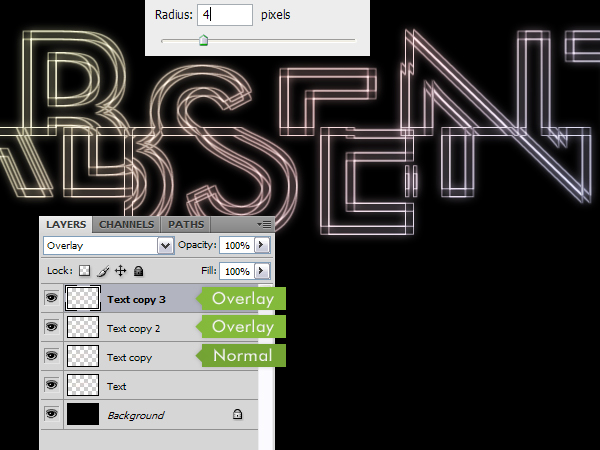
It is time to add some lighting effects now. Duplicate the “Text” layer by hitting Command/Ctrl + J. Go to Filter > Blur > Gaussian Blur and apply with a Radius of 4 pixels. Hit Command/Ctrl + J again to duplicate the “Text copy” layer. Set Blend Mode to Overlay and hit Command/Ctrl + J once again to duplicate the “Text copy 2″ layer.

Step 10
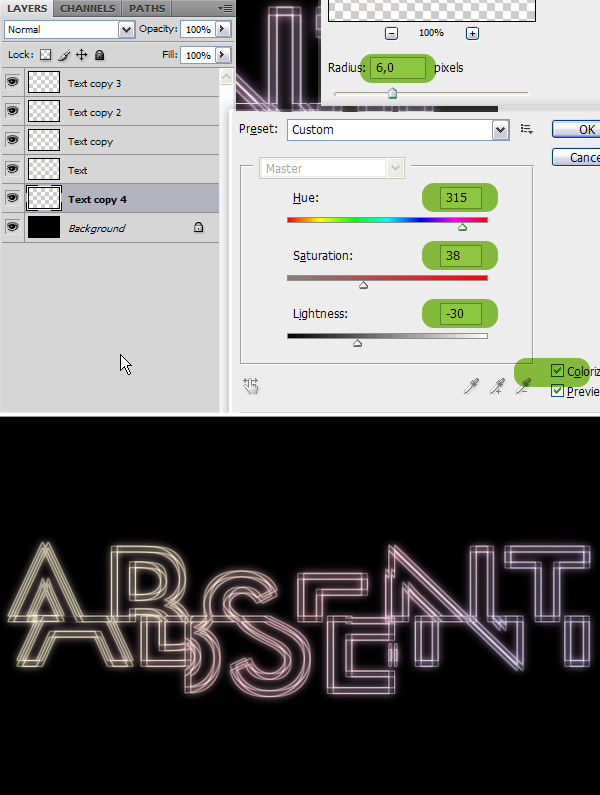
Select “Text copy” layer in the Layers Panel and duplicate it. Drag the “Text copy 4″ layer just above the “Background” layer. Go to Filter > Blur > Gaussian Blur and apply with a Radius of 6 pixels. Then go to Image > Adjustments > Hue/Saturation and use these settings: Colorize: Checked, Hue: 315, Saturation: 38 and Lightness: -30.


Step 11
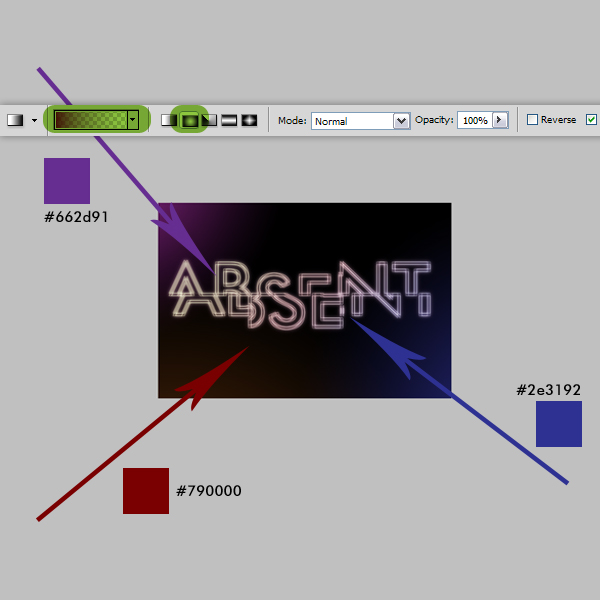
Now we’ll create the background. Create a new layer above the “Background” layer and name it “Lights”. Get the Gradient Tool, pick Foreground to Transparent and set to Radial Graident. Zoom out and apply gradients starting from outside the canvas as shown in the below image. You can use the colors shown below as well as you can pick your own.


Step 12
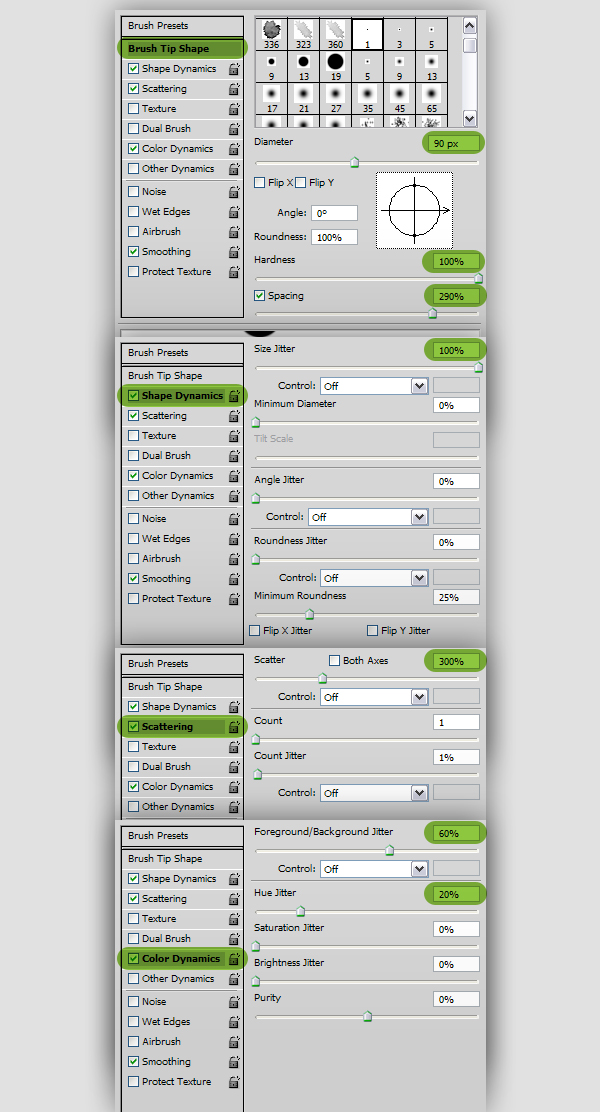
Create a new layer above the “Lights” layer and name it "Circles". Get the Brush Tool, pick one of the standart round brushes and open the Brushes Panel and change the settings as shown below.


Step 13
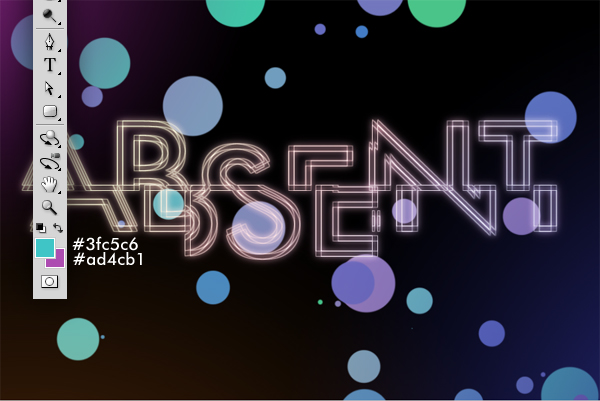
Set Foreground Color to #3fc5c6 and Background Color to #ad4cb1. Paint the "Circles" layer with random brush moves.


Step 14
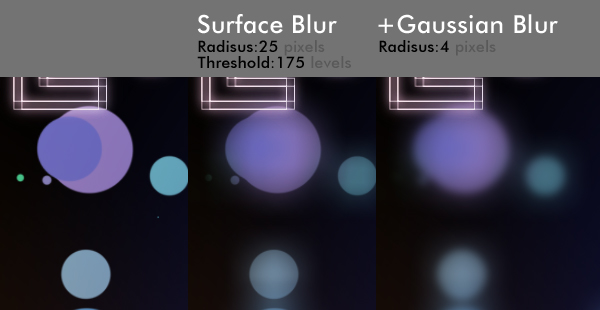
Now go to Filter > Blur > Surface Blur, set Radius to 25 pixels, set Threshold to 175 levels and apply. Then go to Filter > Blur > Gaussian Blur and apply with a Radius of 4 pixels.


Step 15
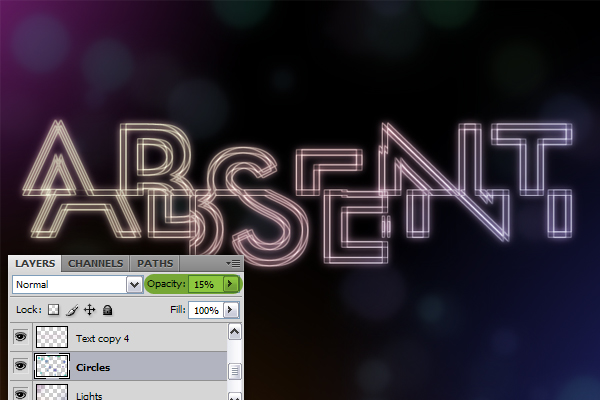
Set the Opacity of the “Circles” layer to 15 and this is what we have so far.


Step 16
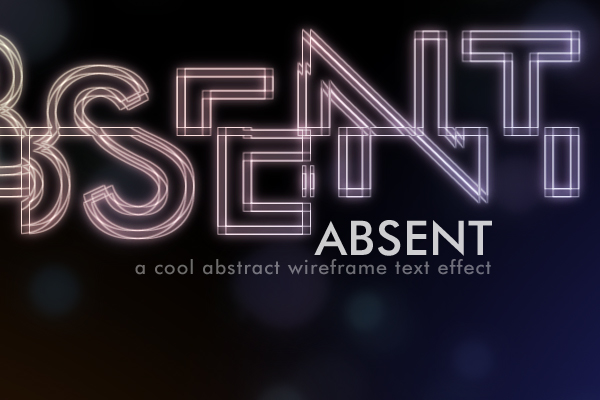
Finally, we’ll add some text to our design. I placed a clear "ABSENT" text and a subhead text using the same font we’ve used before.


Final Image
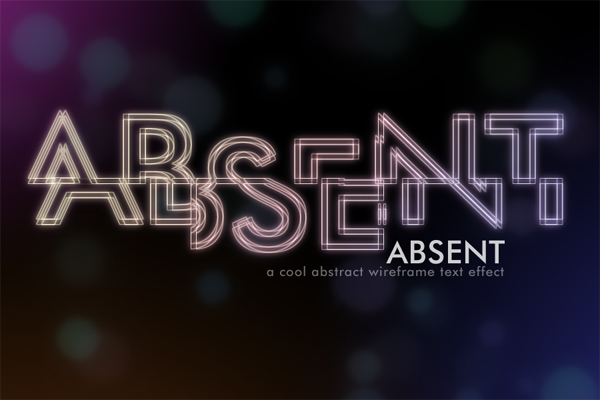
Here is the final image. I hope you liked this tutorial and the techniques you learned will come in handy for your own designs.
Pandora Hearts

| 0 comments


Format: MP4
Resolution: 320x240
Language: Jap w/ Eng Subs
File Size: Max. of 33MB

Genre: adventure, fantasy, mystery
Themes: Alice in Wonderland, family, monsters, social classes, Through the Looking Glass

Plot Summary: Oz Bezarius, heir to one of the duke houses, has just turned fifteen. His life is rich and carefree, darkened only
by the constant absence of his father. At his coming-of-age ceremony, however, everything changes. For no reason that he can discern,
he's cast into the prison known as the "Abyss", only to be saved by a "chain" known as Alice, the bloodstained black rabbit. It is unknown
why was he cast into Abyss, how does Alice factor into it all, and what does the organization known as "Pandora" want with him.

Episode 1 "Innocent Calm"
Episode 2 "Tempest of Conviction"
Episode 3 "Prisoner & Alichino"
Episode 4 "Rendezvous"
Episode 5 "Clockwise Doom."
Episode 6 "Where am I?"
Episode 7 "Whisperer"
Episode 8 "Question"
Episode 9 "Malediction"
Episode 10 "Grim"
Episode 11 "A Lost Raven"
Episode 12 "Welcome to Labyrinth"
Episode 13 "Keeper of the Secret"
Episode 14 "Hollow Eye Socket"
Episode 15 "Who Killed Poor Alice?"
Episode 16 "His Name is..."
Episode 17 "Hello My Sister!"
Episode 18 "Eliot & Leo"
Episode 19 "The Pool of Tears"
Episode 20 "Modulation"
Episode 21 "Snow White Chaos"
Episode 22 "Countervalue of Loss"
Episode 23 "A Warp in the World"
Episode 24 "Kyrie"
Episode 25 "Beyond the Winding Road"

Omamori Himari

| 0 comments


Format: MP4
Resolution: 320x240
Language: Jap w/ Eng Subs
File Size: Max. of 33MB

Genres: action, comedy, romance
Themes: ayakashi, catgirls, ecchi, fanservice, harem

Plot Summary: The slapstick romantic comedy centers around an ordinary 16-year-old high school boy named Yūto Amakawa who is protected by a spirit — specifically, a beautiful, sword-wielding cat girl spirit named Himari.
Yūto is descended from a family that has subjugated demons since time immemorial. The charm that once protected him is now impotent, but fortunately, at that same moment, Himari appears before him as his new guardian.

Episode 1 "Cat and Girl and Allergy"
Episode 2 "Sea Cat Scramble"
Episode 3 "Maid in Cat"
Episode 4 "The White Cat of Noihara"
Episode 5 "A Troubled Cat and Composure"
Episode 6 "Kiss x Cat x KISS"
Episode 7 "The Cat's Feelings and the Witch's Melancholy"
Episode 8 "Curiosity killed the cat"
Episode 9 "The Cat in the Approaching Darkness"
Episode 10 "The Cat Demon's Feelings"
Episode 11 "Himari, as the Protective Sword…"
Episode 12 "Cats, Yuto, and a Maiden's Pure Heart"

Nogizaka Haruka no Himitsu

| 0 comments


Format: MP4
Resolution: 320x240
Language: Jap w/ Eng Subs
File Size: Max. of 34MB

Genre: comedy, romance
Themes: fanservice, high school, otaku

Plot Summary: Nogizaka Haruka no Himitsu centers around Yūto Ayase and Haruka Nogizaka. Yūto is seemingly ordinary,
but Haruka is attractive, intelligent, and rich, which prompts other students to idolize her and even give her French
nicknames like "Nuit Étoile" (The Silver Star of the Night) and "Lumière du Clavier" (The Shining Princess on the Piano).
One day, Yūto wanders into the school library in order to return a book and accidentally stumbles upon Haruka's deepest,
darkest secret: she is a diehard fan of anime and manga, in other words, a regular otaku. Promising Haruka to keep this a
secret, Yūto becomes her advisor and confidente of some sort and hangs out with her more, though earning some viciously
envious glares from his fellow schoolmates.

Season 1
Episode 1 "It's All Over..."

Episode 2 "My First Time..."

Episode 3 "It's Over..."

Episode 4 "Is it Weird...?"

Episode 5 "If You Look at Me Like That..."

Episode 6 "It's...the Summer Comiket"

Episode 7 "...I Love It!"

Episode 8 "...Big Bro ☆"

Episode 9 "I Was Happy..."

Episode 10 "I Want to Be Together..."

Episode 11 "...Sorry For The Wait"

Episode 12 "It's a Secret!"


Season 2
Episode 1 "I Want to Go Together..."

Episode 2 "Please Put It In..."

Episode 3 "Ah, It Hurts..."

Episode 4 "Yūto's Scent..."

Episode 5 "...It's Good..."

Episode 6 "My Body Feels Hot..."

Episode 7 "It Might Have Gone In..."

Episode 8 "I'll Do It For You..."

Episode 9 "This is My First Experience ☆"

Episode 10 "I Didn't Expect It to Turn Into This..."

Episode 11 "I Want to Keep Feeling It..."

Episode 12 "It's a Promise"

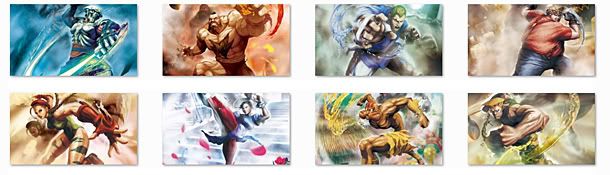
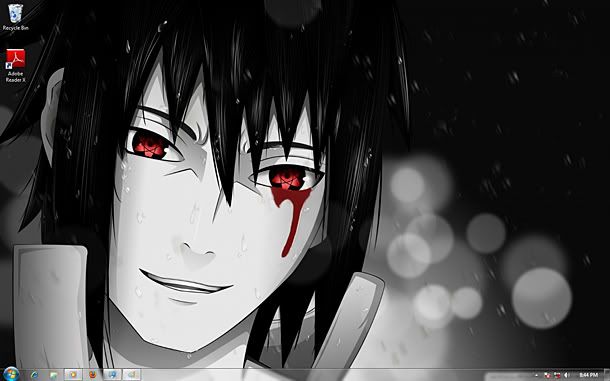
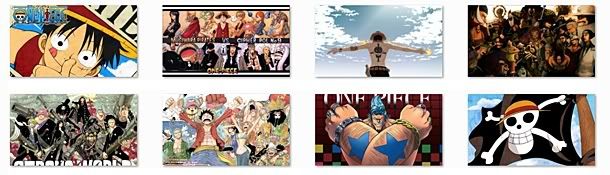
Naruto/One Piece/Dragon Ball/Street Fighter Wallpapers

| 0 comments

Note: All the wallpapers are of very high quality at 1920x1080 resolution and will fit both 4:3 and 16:9 resolutions well with the 'fill' setting available in windows 7.


Installation: Just  the file and run the .themepack file.
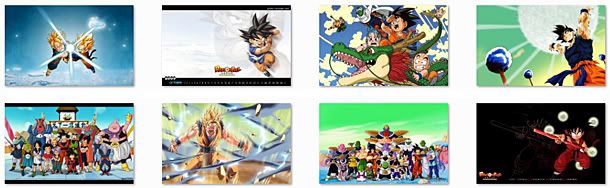


Street Fighter X Tekken


http://www.mediafire.com/download.php?y38ydz6xedj9vp4


Dragon Ball Z


http://www.mediafire.com/download.php?vlllljn7e3m8eaj


Naruto Shippuden


http://www.mediafire.com/download.php?87q6qo2dgoylgxc


One Piece


http://www.mediafire.com/download.php?9yypgfjzcddituq


Password: jhaizel11.com

Tutorial How to Hide Disk Partition, Anti-Hack way

| 0 comments

This is the simple step how to Hide Extended Disk Partition.

This is my screenshot on My Computer that my extended partion is here
i try to hide the partion (F:)Picture


Now Let`s Proceed. We are using DISKPART Command.

1.Press Start and press Run 
2.Type "diskpart" then press ok
3.Now type the list volume and find the drive that you want to Hide ( I will Hide the Drive F: )
4.Type select volume 6(my drive f: is letter 6) 
5.Type remove letter f and hit enter


6.And my drive F is already Hiding now


How to Back your Drive Again?

Just Follow the procedure 1-4, instead  "remove letter f" just type "assign letter f"

Watch ALJAZEERA News

| 0 comments


Watch Disney Channel

| 0 comments


Watch Cartoon Network [Alternative Links]

| 0 comments

';embed=embed+'';embed=embed+'
 
Support : Arnold Merch | Facebook Page | Strings and Harmony
Copyright © 2012. Your Stations - All Rights Reserved
Template Modify by Creating Website
Proudly powered by Blogger