Showing posts with label pc tips and tricks. Show all posts

[TUT] How to change the colours of background and text of command prompt.

| 0 comments


1. Click Start
2. Click Run
3. Type cmd > enter
4. Type: help color
A list of available colours will show up
The list will show number from 0 to 9 and letters from A to F
5. Type color 6 to have yellow text, color 4 to have red text, color A to have light green text etc.
6. To change the color of the text as well as the background: example, kung gusto natin ng light red background with light yellow text, just type: 

[TUT] Fixing Non Responsive Programs

| 0 comments

How to fix non responsive programs

So we all have had programs crash at some point right?

Well, This is a technique i have come across.

NOTE: (only tested on XP ) was told it works with vista.

15 Useful Google Search Tricks

| 0 comments

15 Useful Google Search Tricks


Most of us use Google search to search on various topics, products, tips, etc. No doubt it’s one of the best search engines available out there. In order to search something we simply enter the keywords in the search bar and search for stuff but did you ever know that there are several built in functions within Google which makes searching stuff even easier. Some of you’ll know about them. But well if you don’t, then here they are:

Promoting your web page and blog

| 0 comments

Intro
Unless your page is among the top of search engine results, no one will know your page exists. The Internet consists of BILLIONS of individual web pagesand millions more appear every day. This page will help improve your search engine rankings and page quality using the secrets and tips we learned over the past twenty-years. Computer Hope currently averages over 340,000 unique page views a day and over nine million unique a month (around 50 million hits).
Secrets and tips
Below is a listing of quick links to get to a specific category on this page. If you have not yet read through this document we suggest simply reading this whole page so nothing is missed.

23 Coolest Firefox Tricks Ever!

| 0 comments

23 Coolest Firefox Tricks Ever!

1. More screen space. 


Make your icons small. Go to View - Toolbars - Customize and check the “Use small icons” box.


2. Smart keywords.

If there’s a search you use a lot (let’s say IMDB.com’s people search), this is an awesome tool that not many people use. Right-click on the search box, select “Add a Keyword for this search”, give the keyword a name and an easy-to-type and easy-to-remember shortcut name (let’s say “actor”) and save it. Now, when you want to do an actor search, go to Firefox’s address bar, type “actor” and the name of the actor and press return. Instant search! You can do this with any search box.

10 Yahoo Messenger Tricks You Shouldn't Miss!

| 0 comments

10 Yahoo Messenger Tricks You Shouldn't Miss!


1. Finding an invisible user on your yahoo messenger list:

Want to find out someone who’s hiding from you? You can easily do so by going to Yahoo Invisible Checker. All you need to do is type in the Yahoo! ID and the particular users status will be revealed.

2. Run Multiple Instances of Yahoo Messenger on same system:

Some of you might be having more than one yahoo ID would like to log in simultaneously. Here is an easy way to do it without installing any sort of software. You just have to edit the registry and voila there you go. Follow the instructions from here.

3. Invisible Nickname In chat rooms

Just go to edit profile and in the nick name type a (space character) on it just press Alt 0160 ( or ALT+255 ) and save it.

Now go to any yahoo chat room and you’ll notice that your nick name is empty. [Alt+0160 is a keyboard shortcut for space]

4. Removing Ads from your Yahoo Messenger

If you are using Yahoo Messenger 8.0, then you can disable ads by following the below steps:
1. First close the Yahoo Messenger.
2. Save this .bat file and execute it.
NOTE: You won’t be able to enter the chat rooms if you use this patch.
This above fix doesn’t work for Yahoo Messenger 9 Beta. Here’s a way to disable the ads in Yahoo Messenger 9:

Eset Smart Security Latest Version - Get Your Own Legal License For Free!!!

| 0 comments

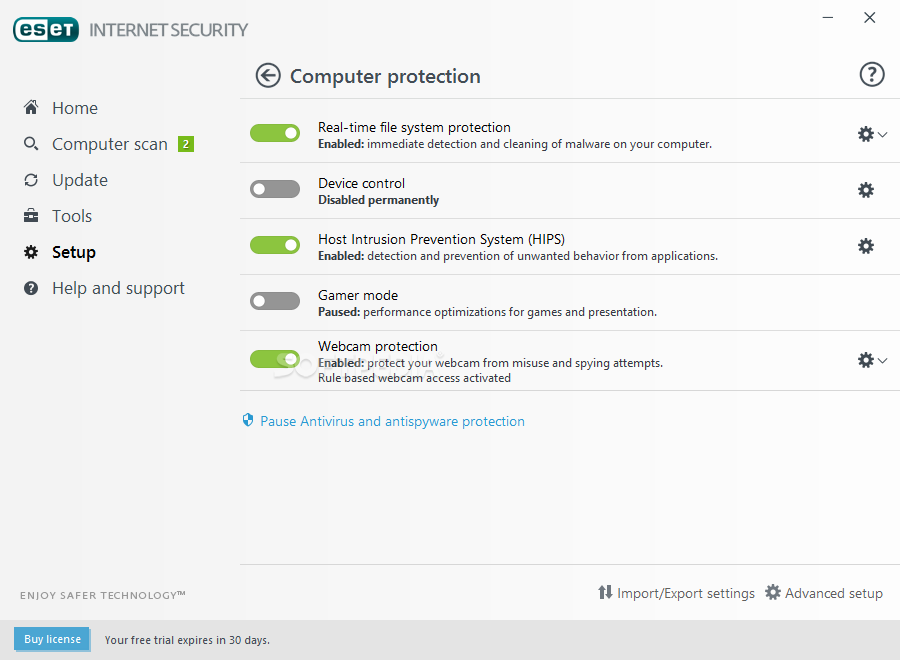
ESET Smart Security 4


Antivirus | Antispyware | Firewall | Antispam

The Internet is a wonderful place for networking, searching for information and entertainment, but it is also where malicious software and other threats lurk. ESET Smart Security 4 keeps your PC safe with advanced proactive detection that blocks most known and undiscovered threats hours or days faster than other Internet security technologies.


Key Benefits
Built on the award-winning NOD32 antivirus and antispyware engine, ESET Smart Security stops most new threats proactively, well before other vendors have issued a signature, maximizing your defense against new and unknown threats.

Integrated antispam and personal firewall keeps your online life safe and cleans Internet traffic and email, even when it's SSL-encrypted.
Stops threats from entering through removable devices so you can share files with confidence
Integrated SysInspector and SysRescue simplify system diagnosis and recovery
Self defense prevents malware from degrading your level of protection
Tiny signature updates happen discretely as needed and won't bog down your system.

“Hello World” Programs for top 10 programming language

| 0 comments

Before you start learning any programming language, you must know that how much important and popular the programming language is that you are going to learn.Because, learning itself is never a bad thing, we always motivate you to learn any new thing everyday. If your learning plan is in a managed and well planned way then you’ll never eat mud in the mid way.
Most of the programming language have same methodology and almost similar to each other. If you learn PHP you can easily understand C and vice versa and same with others, because they are totally related to each other.
"Hello World" Programs for top 10 programming language
One of the first programs that one usually writes when learning the first programming language is "Hello World". Today I’ll show you the top ten programming language you must learn in your life to get never ending career in Computer Programming. We’ll also show you the first program "Hello World" to begin with.


Fixing corrupted files in Windows XP, Vista & Windows Seven [Complete tutorial]

| 0 comments

How to fix corrupted files in Windows XP, Vista, & Windows 7?

This tutorial has been made so people that are having problems with corrupted files in Windows XP, Vista or Windows 7, can learn how to fix them easy.

Requirements: Windows XP, Windows Vista, or Windows 7 Operating System + Windows XP, Vista, or Windows 7 CD

Steps:
1. Place your XP, Vista, or Windows7 CD in your cd/dvd drive
2.Click start
3.Click Run
4. Type in "sfc /scan now" (without ") Now it should all load, and fix all your corrupted file on Windows XP, Vista, or Windows 7 OS.

Hope it helps you...

[Must Try]The Hidden Bluetooth Software in Windows XP, Vista, & 7

| 0 comments

Hidden bluetooth software in Windows XP, Windows Vista and Windows 7

Credits to Microsoft.


1.Open the run command from start menu.
2.Now type fsquirt
and hit enter

This will open a window with text welcome and follow the instructions and you are done.


Enjoy! Tried and Tested it works!


EDIT: Ayon sa mga nagfeedback working sa Windows XP, Vista and Windows 7

[Tut] How to make your computer say everything you type?

| 0 comments


This tutorial is about making your computer say everything that you type.

== Steps ==
1. Open up Windows Narrator. You can do this by going to Start --> All Programs --> Accessories --> Accessibility and then clicking on Narrator.
2. Open up Notepad. You can do this by going to Start --> run --> type in notepad then enter
3. After notepad opens up and you have narrator up, type words in the notepad.
4. Highlight the words in notepad.
5. Press CTRL+ALT+SPACEBAR
6. Your computer should say the words
7. then play the words by typing them into your text box

Enjoy!

Thanks for reading

Windows XP hidden song!!!

| 0 comments


Do you know that in your Windows XP there is a secret hidden song!!!???

This song is called Windows Welcome Music - Microsoft

To listen the song just go to:

My Computer > double click hard drive where your windows installed (usually po sa Local Disk C) > open Windows > open System32 > open the folder oobe > now double click the folder Images > then search and open the file with the name Title.

This is Windows hidden secret music with 5:23 minutes of length.

Thanks for reading

[TIPS] How to stay malware free!

| 0 comments

How to stay malware free!

Hi, 

I'm writing this to hopefully keep you virus, spyware, adware, and malware free. This manual will hopefully educate you on malware, help prevent it and help remove it. 


So what's this 'malware' then?

So, what is 'Malware'? Malware is the name given to viruses, spyware, adware, trojans, keyloggers and all the nasty things you want to avoid when computing. Malware is a common issue with computers (especially Windows, lesser on Linux and Mac) because there's a wide variety of ways you can get infected by malware.


Symptoms of infections:

1. Redirects - a popular symptom is redirects, let's say you go to Google and it redirect you to some Russian website, you're most likely infected with a trojan so it's time to scan with your Anti virus, then your Anti malware.
2. Slow computer - Computer abnormally slow? You could be infected, run a scan.
3. Icons on desktop, you didn't put there - most likely an infection, scan!
4. Popups - I don't just mean the odd one, I mean quite a lot. If so, it's time to get scanning


Tips

1. Always keep your Antivirus and Antimalware up to date, it's useless if you don't.
2. Run a scan once in a while (don't go overkill and scan daily, it's just wasting time and energy)
3. Don't run more than one real time Antivirus together.
4. Don't visit shady serial websites, or porn sites that you don't trust.
5. Always run an Antivirus, in the event of a virus and you don't have one you will really wish you'd had one (as I found out a while back)
6. Use common sense while computing.


Top Ten Tips To Improve Computer System Speed

| 0 comments

Top Ten Tips To Improve Computer System Speed

1. Let your PC boot up completely before opening any applications.


2. Refresh the desktop after closing any application. This will remove any unused files from the RAM.


3. Do not set very large file size images as your wallpaper. Do not keep a wallpaper at all if your PC is low on RAM (less than 256 MB).


4. Do not clutter your Desktop with a lot of shortcuts. Each shortcut on the desktop uses up to 500 bytes of RAM.


5. Empty the recycle bin regularly.
The files are not really deleted from your hard drive until you empty the recycle bin.


6. Delete the temporary internet files regularly.


7. Defragment your hard drive once every two months. This will free up a lot of space on your hard drive and rearrange the files so that your applications run faster.


8. Always make two partitions in your hard drive. Install all large Softwares (like PSP, Photoshop, 3DS Max etc) in the second partition. Windows uses all the available empty space in C drive as virtual
memory when your Computer RAM is full. Keep the C Drive as empty as possible.


9. When installing new Softwares disable the option of having a tray icon. The tray icons use up available RAM, and also slow down the booting of your PC. Also disable the option of starting the application automatically when the PC boots. You can disable these options later on also from the Tools or preferences menu in your application.


10. Protect your PC from dust. Dust causes the CPU cooling fan to jam and slow down thereby gradually heating your CPU and affecting the processing speed. Use compressed air to blow out any dust from the CPU. Never use vacuum.

-credits to Microsoft for these useful tweaks..


[All Network] Text For Free Using Your Facebook Account!!!

| 0 comments

Steps:

1. Log on to your Facebook account.

2. Go to http://apps.facebook.com/chikkalite/

3. Enter your Country mobile phone number and click Request button.

4. You will received confirmation code in your Mobile Phone. Enter that in the text field and click Next.

5. You can now use ChikkaLite for Facebook and enjoy unlimited text for free.


[No Software needed] Speed up low pc [100% proven & tested]

| 0 comments

Clear or maintain your computer memory speed using simple shortcut icon.

1. Right click nyo yung Desktop > Select New > Click Shortcut

2. Type:


             %windir%\system32\rundll32.exe advapi32.dll,ProcessIdleTasks


and click next

3. Then, create the name of shortcut  ex. Maintain Memory

4. Click Finish

Just open the shortcut everytime if pc getting to slow

That's all


Thanks to simply_mark


Support : Arnold Merch | Facebook Page | Strings and Harmony
Copyright © 2012. Your Stations - All Rights Reserved
Template Modify by Creating Website
Proudly powered by Blogger